Branding
To give your clients a more personalized look and feel, Pia Chat has branding options that can be configured through the Partner Portal. You can configure Teams branding on a global level and on a client specific level as well.
For Global Branding
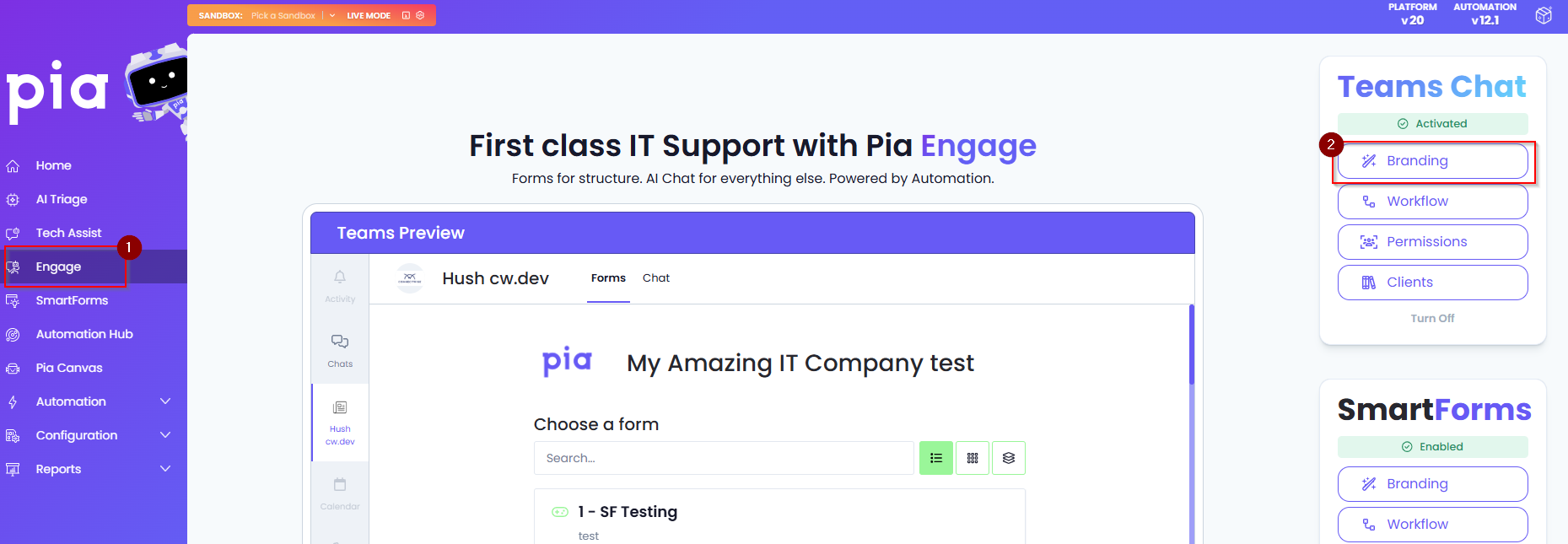
- Login to your Partner Portal and click on Engage on the left hand menu
- Click on the Branding button on the right for Teams Chat
- Now you'll find all the global branding options
For Client Specific Branding
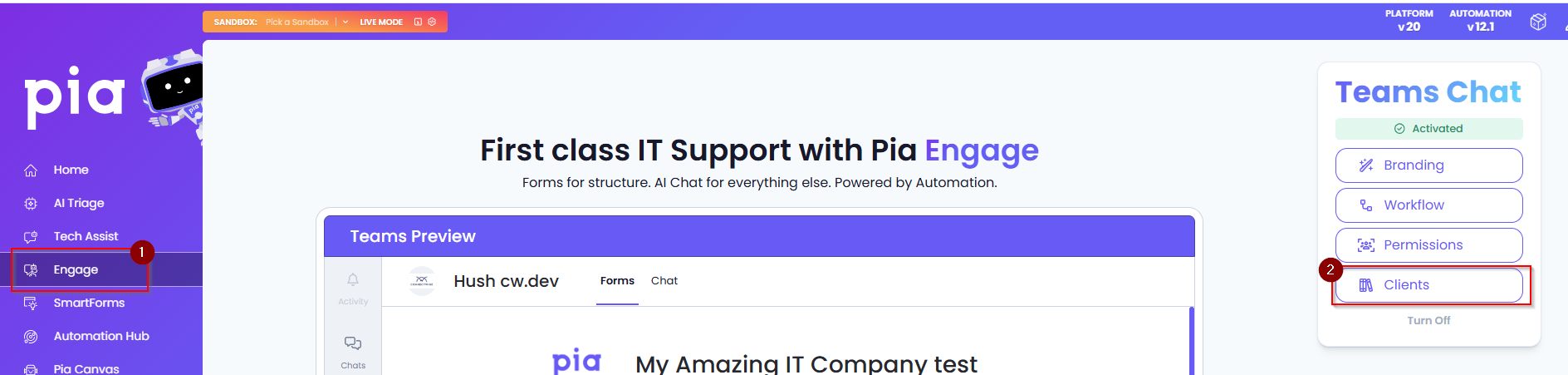
- Login to your Partner Portal and click on Engage on the left hand menu
- Click on the Clients button on the right for Teams Chat
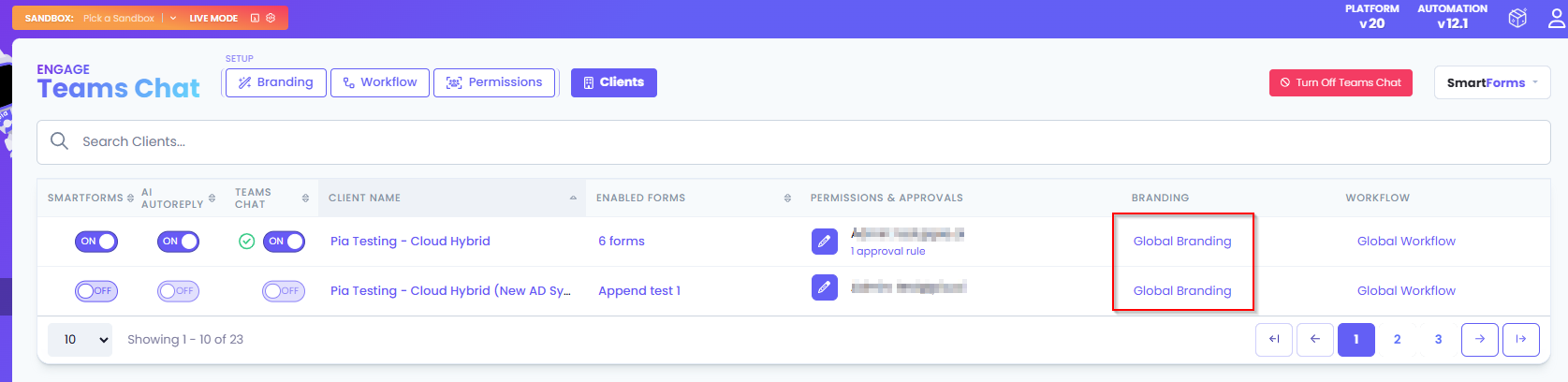
- Click on the Branding column on the clients table
- Here, you'll find all the client specific branding options
Branding Options
Here are the Branding options you can find for Teams:
- Title: This is the name for the AI Resolution Assistant that will be set on the Pia chat
- Short Description: This is an optional short description you can add for your Pia chat that will be displayed below the name
- Long Description: This is an optional long description you can add for your Pia chat that will be displayed below the name
- Profile Icon: This is the logo for the AI Resolution Assistant. The icon should be 192 X192 and should be in png
- Menu Icon: This is the icon on the teams menu. It should be 32 X 32 and should be in png
- Accent Colour: This is the main color used through out Pia chat
- Developer Name: Specify your company name here
- Website Url: Add your company's website URL in this field
- Privacy Url: Add your privacy URL in this field
- Terms Of Use Url: Add your terms of use URL for your business in this field
- Custom Links: This section allows you to configure custom links that will be displayed in a separate bar below the menu bar of your Pia chat. Here, you can add any additional company links that may be useful for your clients